Daily Reports Setup
Create a Tekmetric user account for AutoRx automated daily reports
Who: Shop Admin or Owner
Go to Employees
In Tekmetric, click the menu icon (three lines) in the top left corner. Scroll down to the ADMIN section and click Employees.
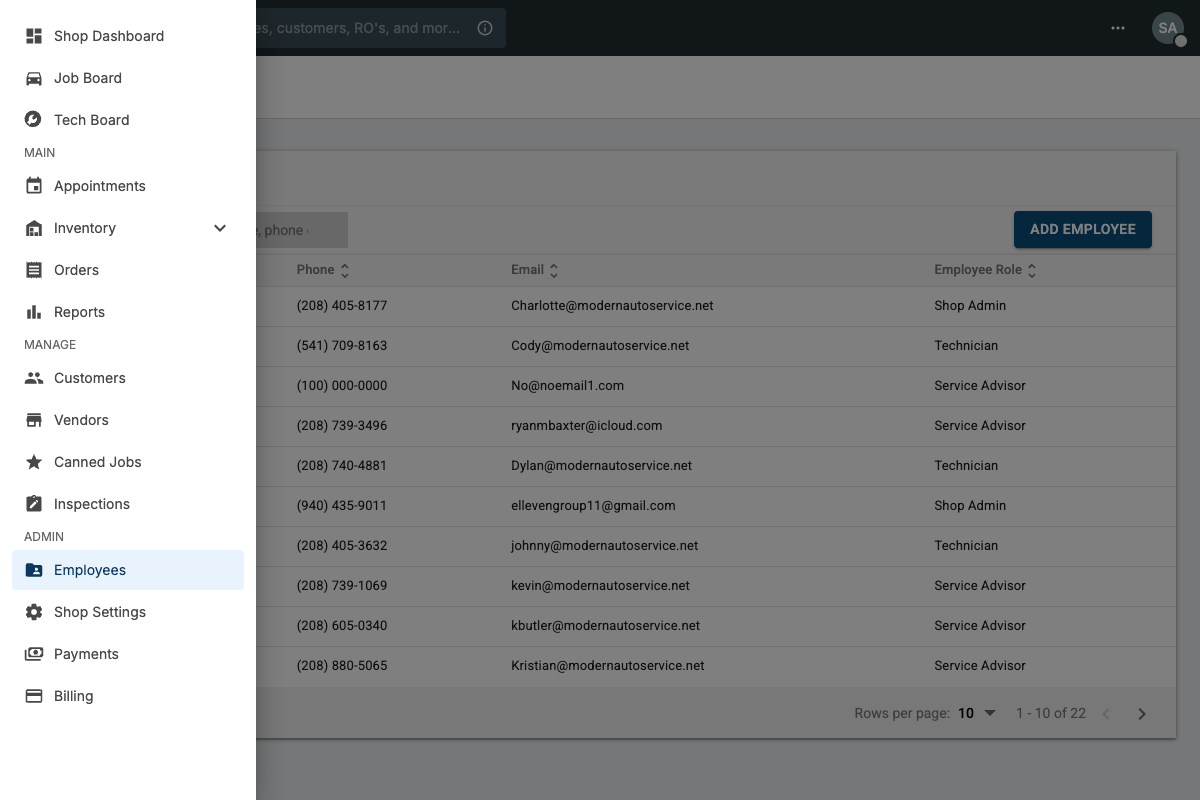
Click ADD EMPLOYEE
On the Employees page, click the ADD EMPLOYEE button in the top right corner.
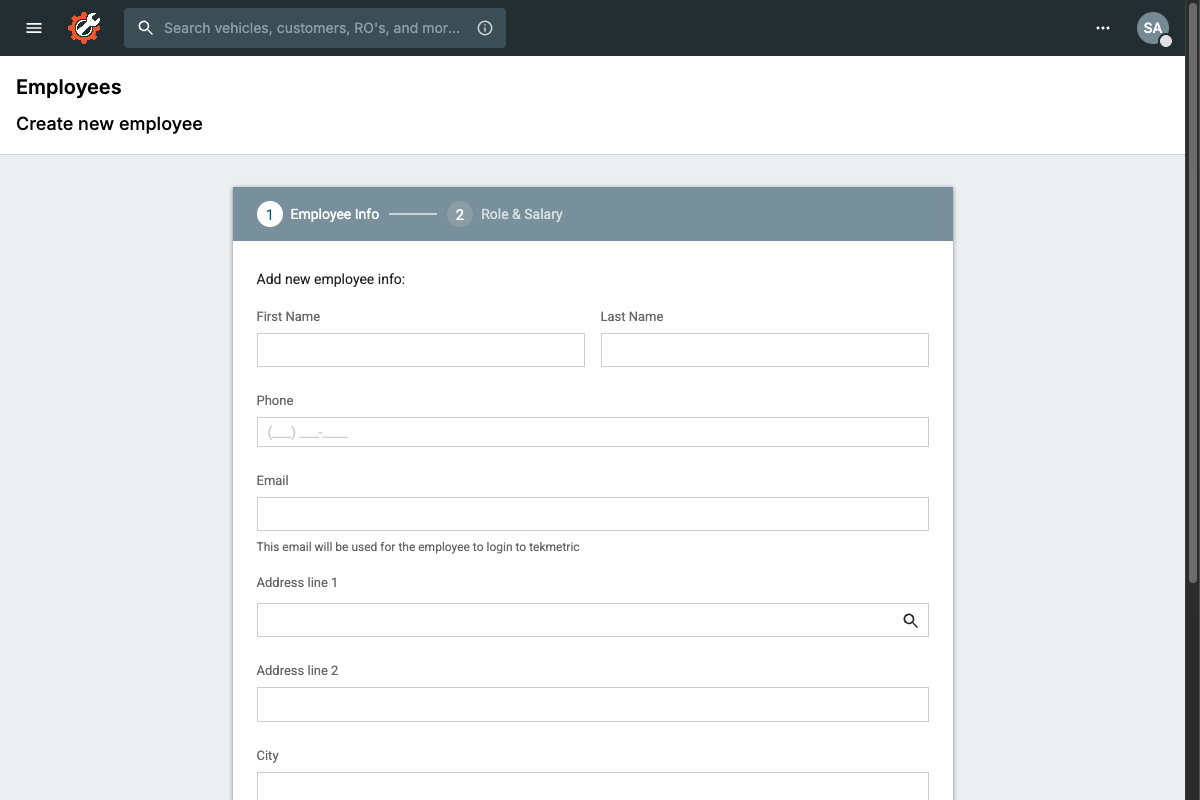
Enter Employee Info
Fill in the following information exactly as shown:
| First Name | AutoRx |
| Last Name | Reports |
| Phone | (208) 254-1866 |
| See important note below | |
| State / Province | Idaho |
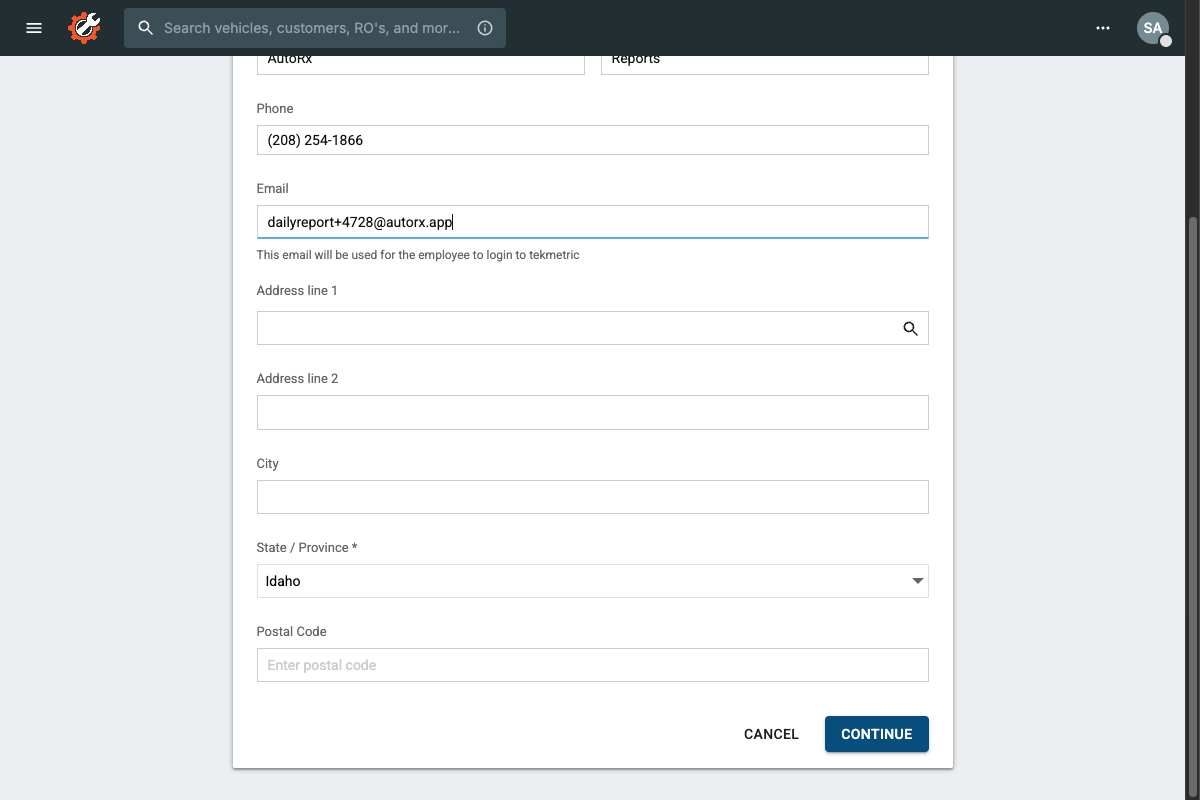
Important: Email Format
You must include the + sign followed by your Shop ID in the email address. Without this, the account will not work.
Email format: dailyreport+YOURSHOPID@autorx.app
Example: If your Shop ID is 1234, enter:
dailyreport+1234@autorx.app
shop.tekmetric.com/admin/shop/4728/... then your Shop ID is 4728.
Click CONTINUE when done.
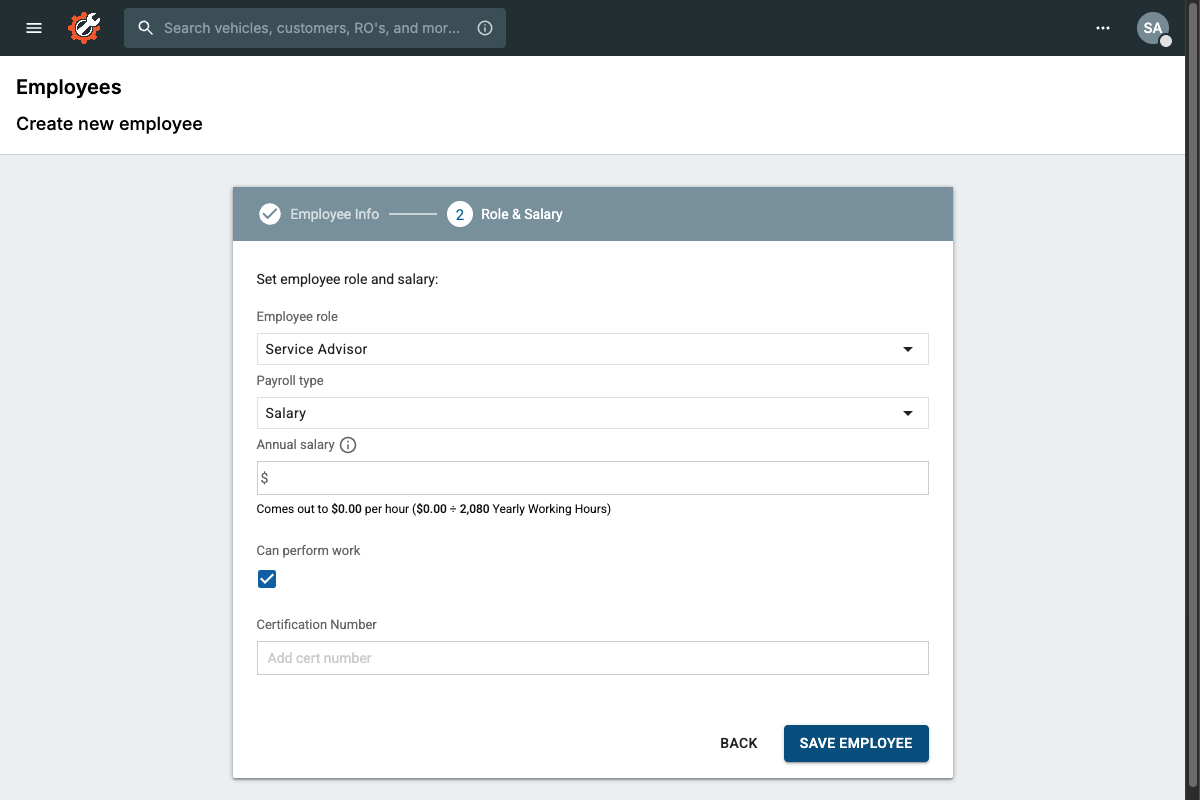
Set Role & Salary
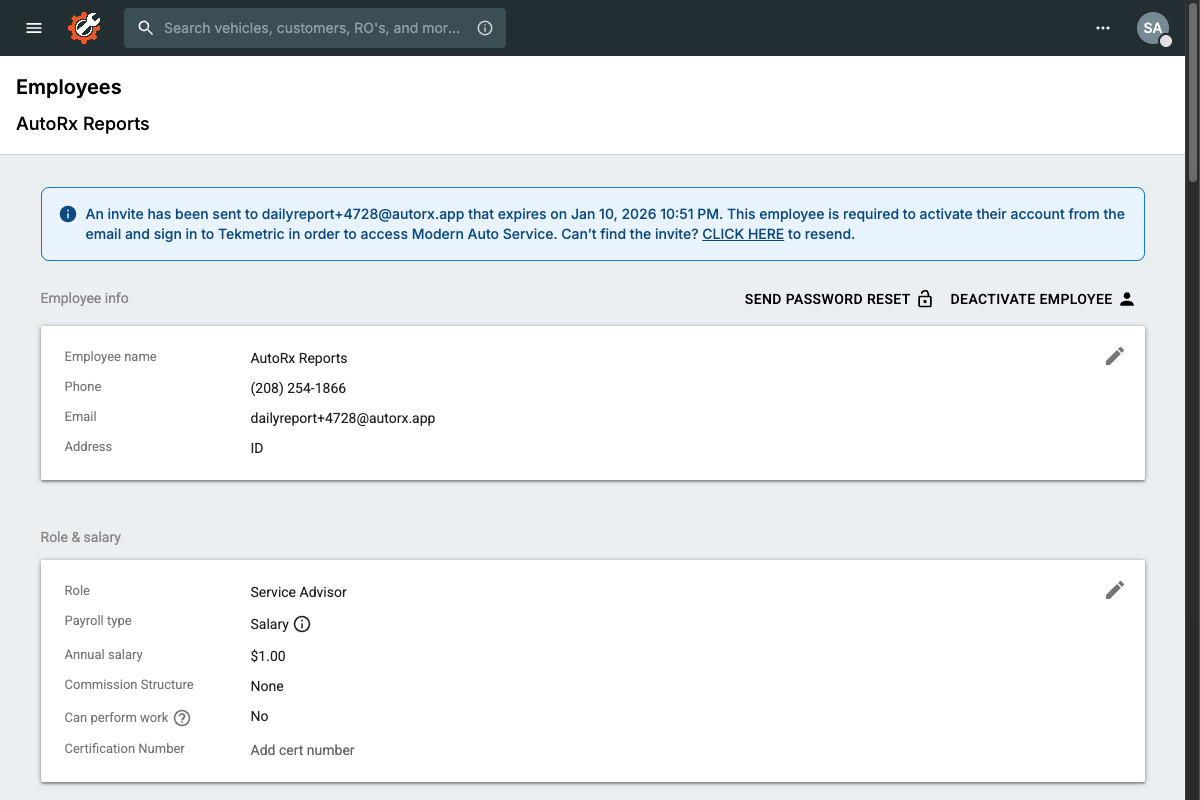
On the Role & Salary page:
- Select Service Advisor as the Employee Role
- Select Salary as Payroll Type and enter $0
- Uncheck Can perform work
Click SAVE EMPLOYEE.
Set Permissions
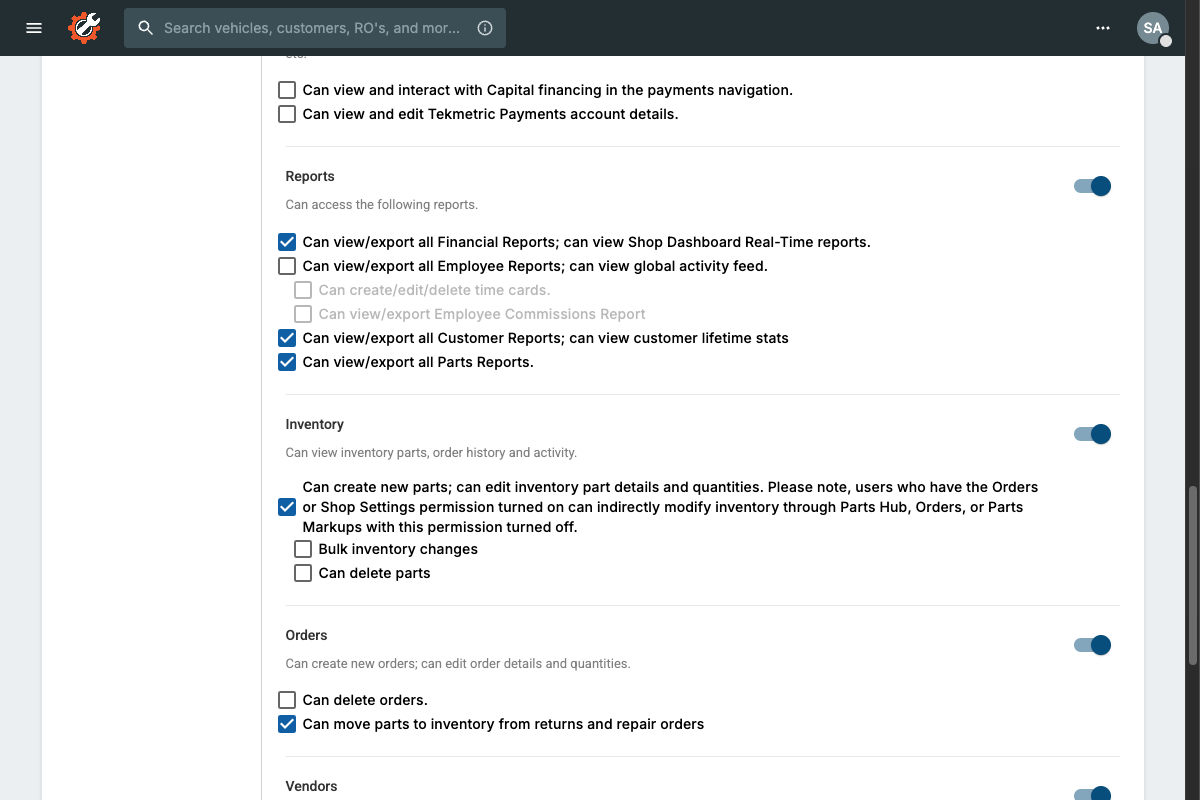
After saving, you'll be on the employee's User Permissions page. Scroll down to find these two sections and check the boxes:
Finance
Check the main Finance checkbox
Reports
Check "Can view/export all Financial Reports"
Save Permissions
Click the SAVE PERMISSIONS button at the bottom of the page.
You're all set!
The AutoRx Reports user is now configured. AutoRx will use this account to generate your daily reports automatically.
Need help? Contact us at support@autorx.app