Daily Reports Setup
Create a Tekmetric User Account for AutoRx
Go to Employees
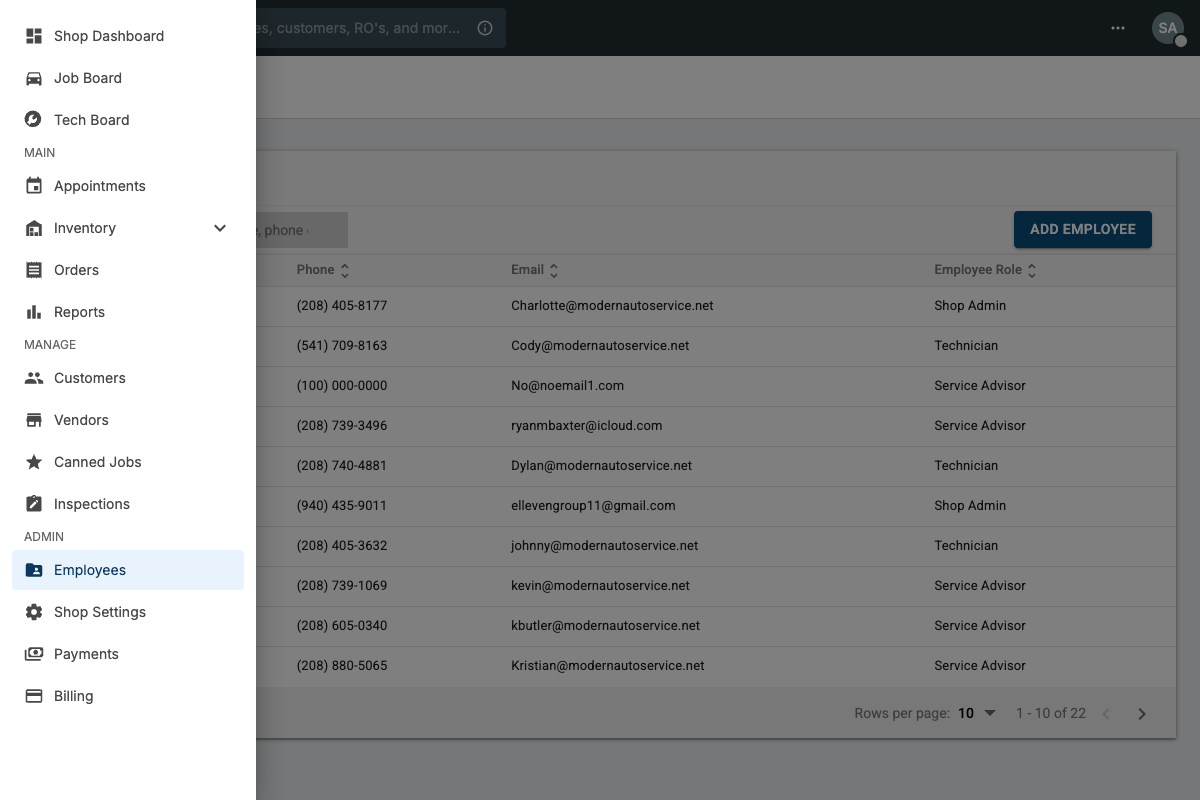
In Tekmetric, click the menu icon (three lines) in the top left corner. Scroll down to the ADMIN section and click Employees.
Click ADD EMPLOYEE
On the Employees page, click the ADD EMPLOYEE button in the top right corner.
Enter Employee Info
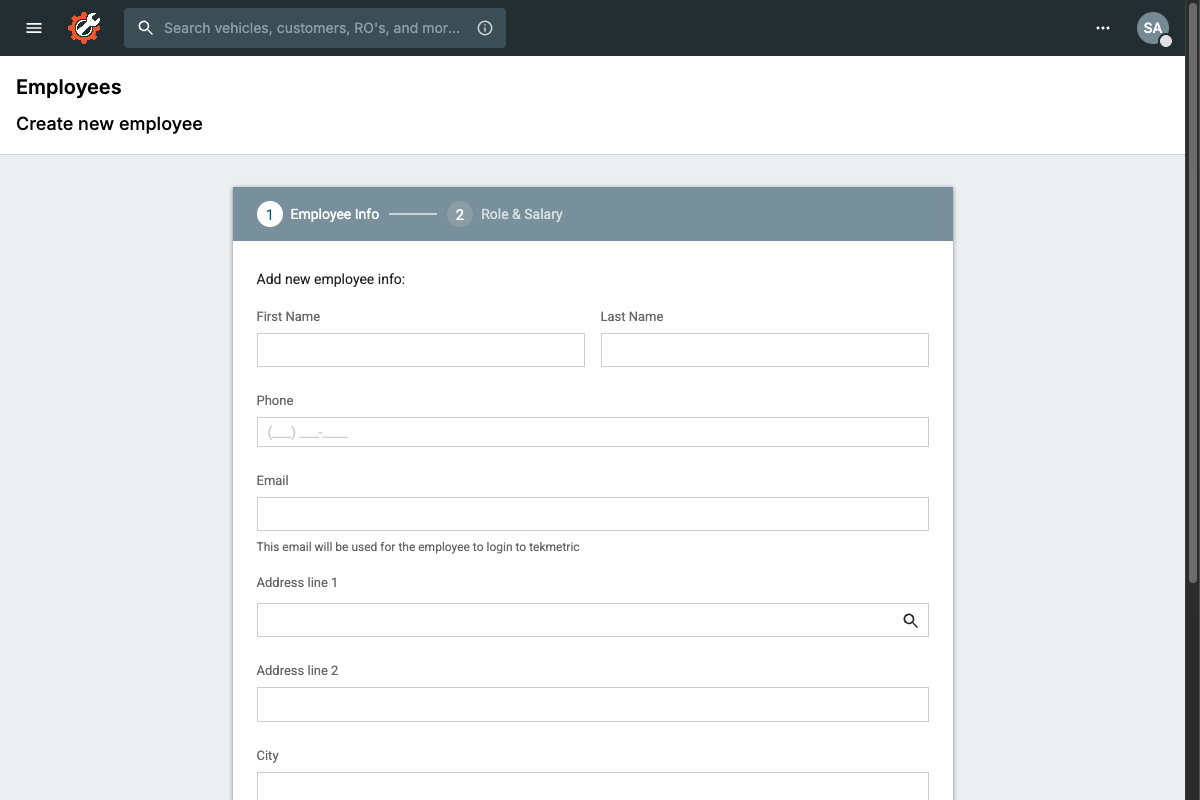
Copy these values into Tekmetric's employee form:
AutoRx
Reports
(208) 254-1866
Idaho
| First Name |
AutoRx
|
| Last Name |
Reports
|
| Phone |
(208) 254-1866
|
|
Email
|
Example: dailyreport+1234@autorx.app |
| State / Province |
Idaho
|
Shop ID Email Generator
Finding your Shop ID
Copy your Tekmetric URL into the field above, or type the numbers after /shop/ in your URL:
In this example, you can enter either the full URL or just 4728
After entering all information, click CONTINUE in Tekmetric.
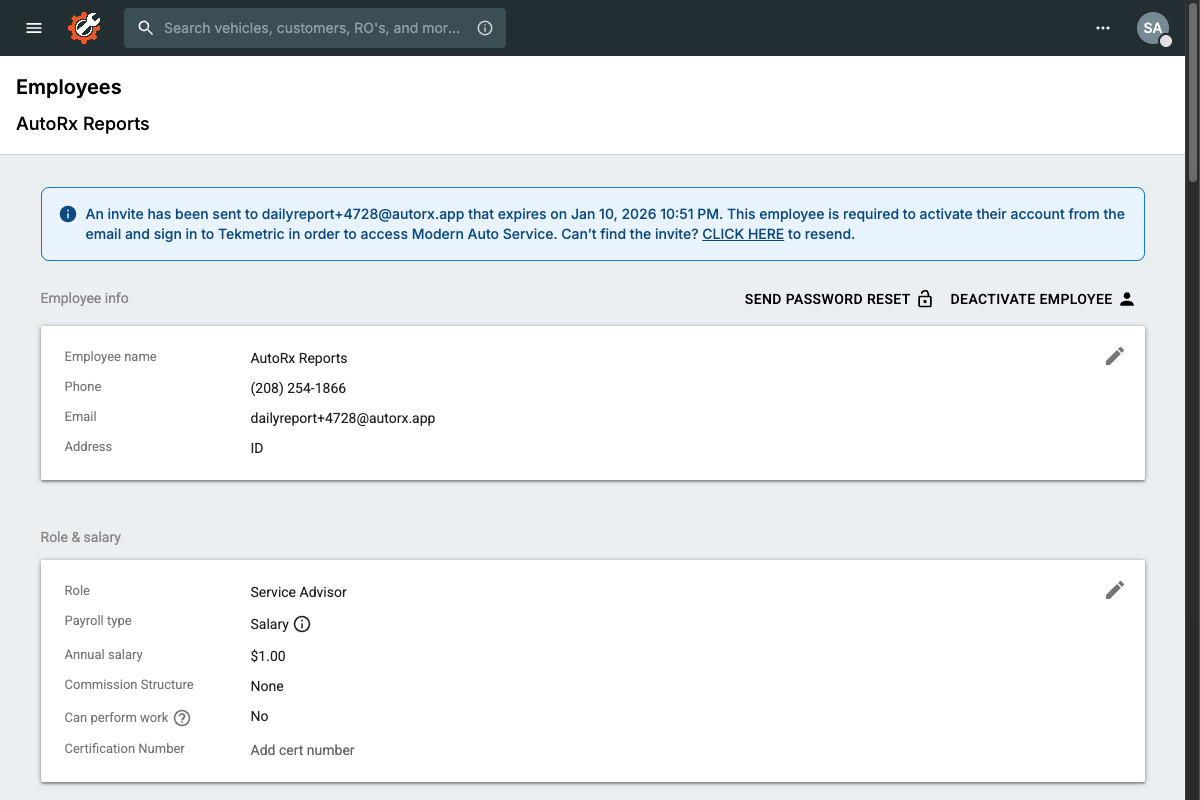
Set Role & Salary
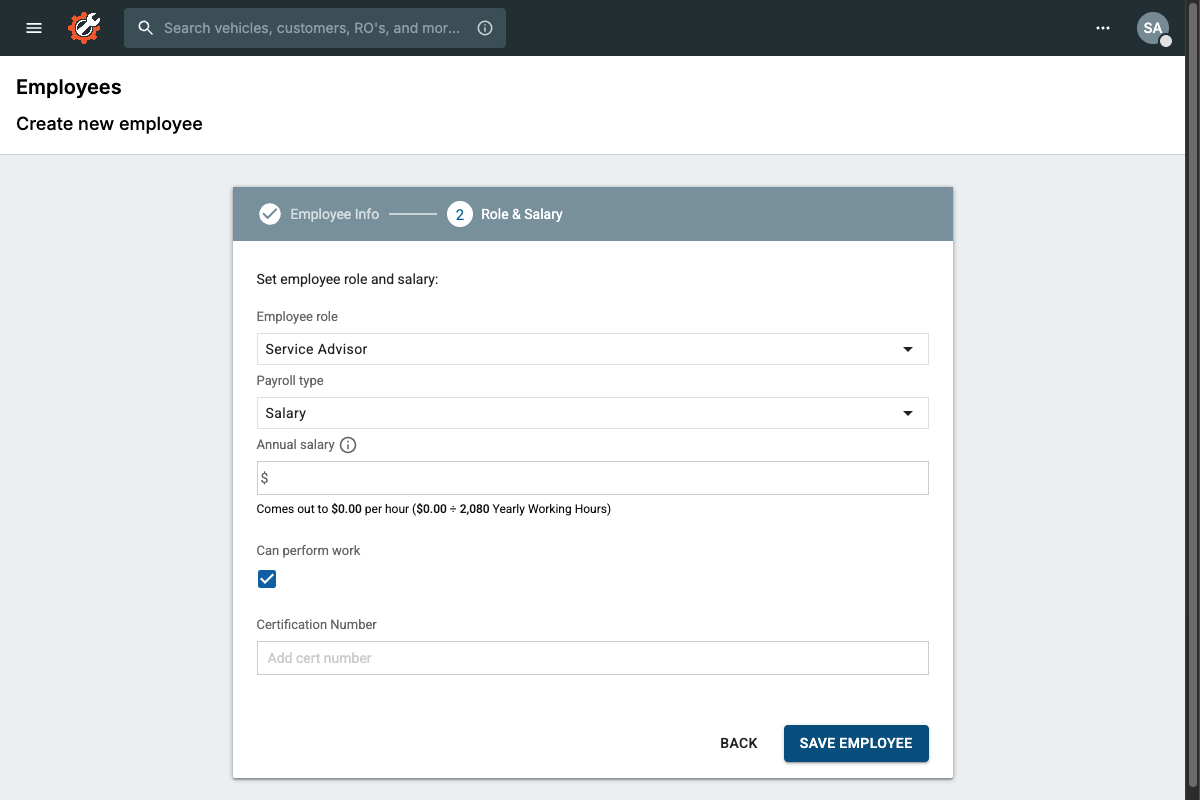
On the Role & Salary page:
- Select Service Advisor as the Employee Role
- Select Salary as Payroll Type and enter $0
- Uncheck Can perform work
Click SAVE EMPLOYEE.
Set Permissions
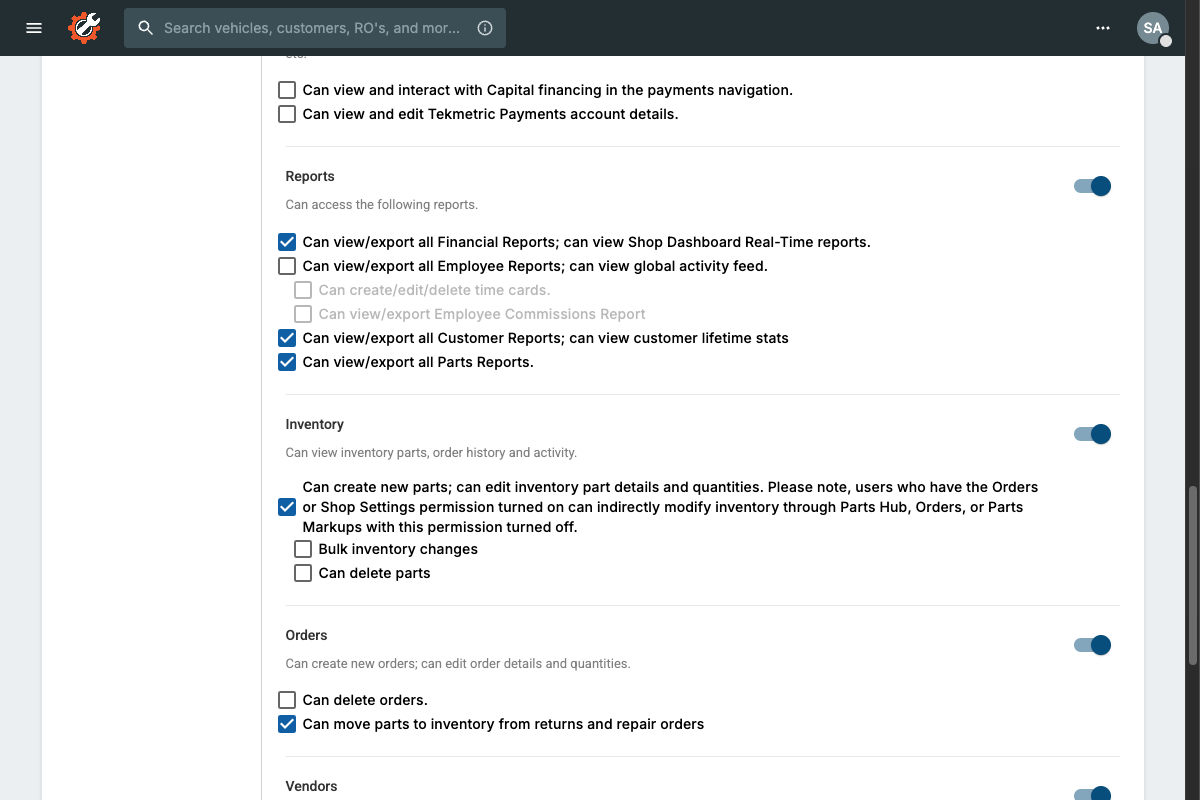
After saving, you'll be on the employee's User Permissions page. Enable these two permissions:
Note: You can turn off all other permissions. AutoRx only needs Finance and Reports.
Finance
Check the main Finance checkbox
Reports
Check "Can view/export all Financial Reports"
Save Permissions
Click the SAVE PERMISSIONS button at the bottom of the page.
You're All Set!
Please allow up to 2 business days for reports to begin arriving.
Continue to Daily ReportsNeed help? Contact us at support@autorx.app